For Developers · Dashboard
Appearance
The Appearance tab lets you brand your get-key page with your own logo, colors, and background. Everything here is visual — none of it changes how the key flow works, only how it looks. A well-styled get-key page builds trust with new users and reinforces your brand for returning ones.
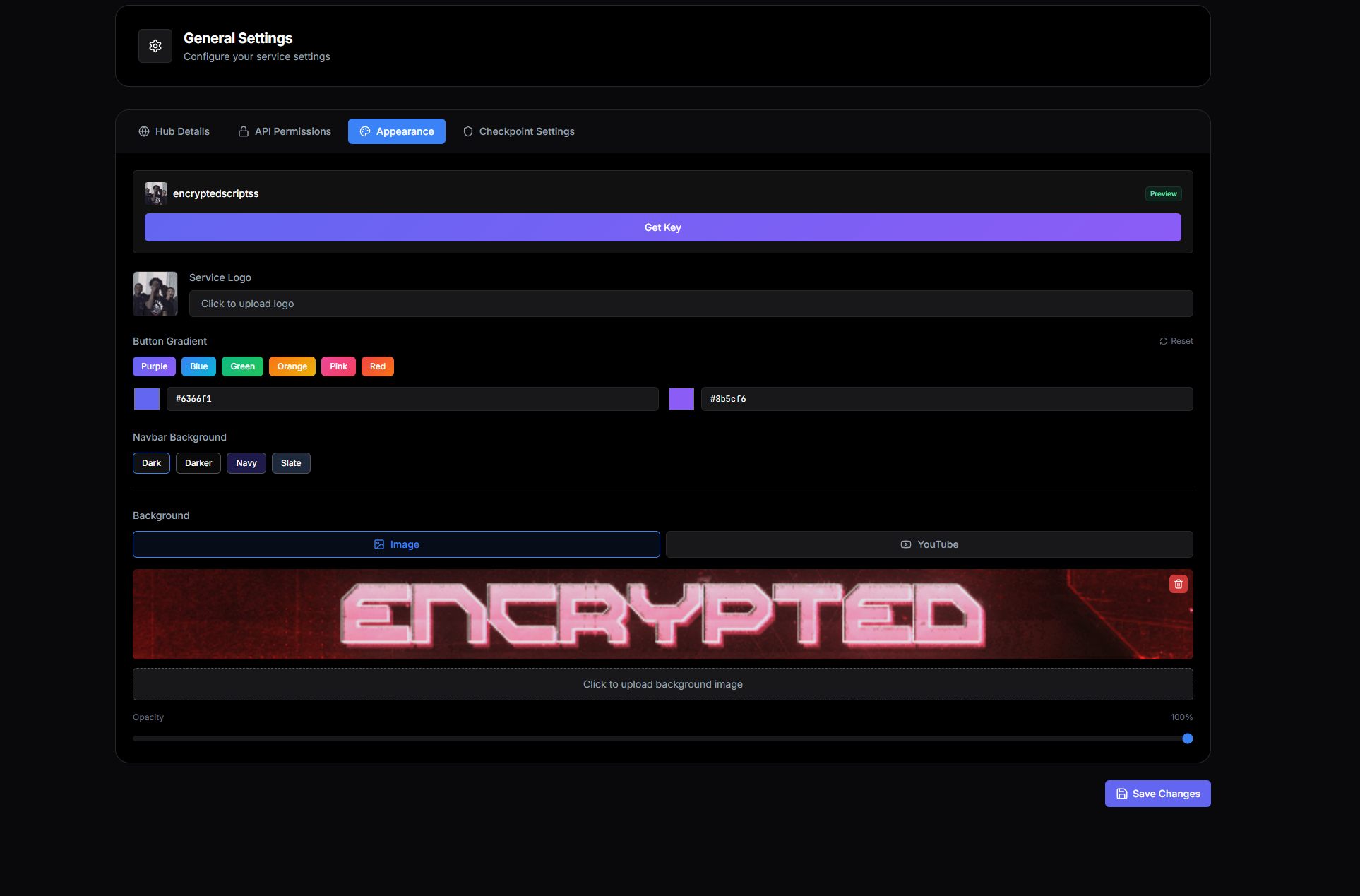
Service Logo
The logo that appears in the top-left of your get-key page (and on the key-issued page, and in any branded webhook embeds). Upload a square PNG or JPG — anything roughly square works, but tall logos will be cropped to fit the slot.
Best practice
Button Gradient
Two color pickers define the gradient for your primary action buttons — the "Get Key" button on the landing screen and the checkpoint progression buttons throughout the flow. The first color is the gradient's start (top-left), the second is the end (bottom-right).
Below the pickers are five preset palettes: Purple, Blue, Green, Orange, Pink, Red. Click any preset to apply both colors at once — useful when you want a clean look without picking values yourself.
Navbar Background
The background color of the top navigation bar on your get-key page. Four built-in presets:
- Dark — neutral near-black, the default for most services.
- Darker — pure black, maximum contrast against light content.
- Navy — deep blue, pairs well with cool brand palettes.
- Slate — warm-gray, softer than pure black.
Pick whichever harmonizes with the rest of your appearance config.
Background
The full-page background behind the get-key card. Two modes:
Image
Upload a static image — a screenshot from your software, custom artwork, a Discord-style banner. Upload PNG or JPG. Large images are scaled to fill the viewport.
Opacity — a slider that controls how visible the background is behind the get-key card. 100% shows the image at full intensity; lower values fade it toward the navbar background color for better readability of the foreground.
YouTube Video
Paste a YouTube URL and the video plays on loop in the background, muted, no controls. Works great for animated banners, game footage, or atmospheric video that would feel awkward as a static screenshot.
The same Opacity slider applies — fading the video improves readability of the get-key card on top.
What the result looks like
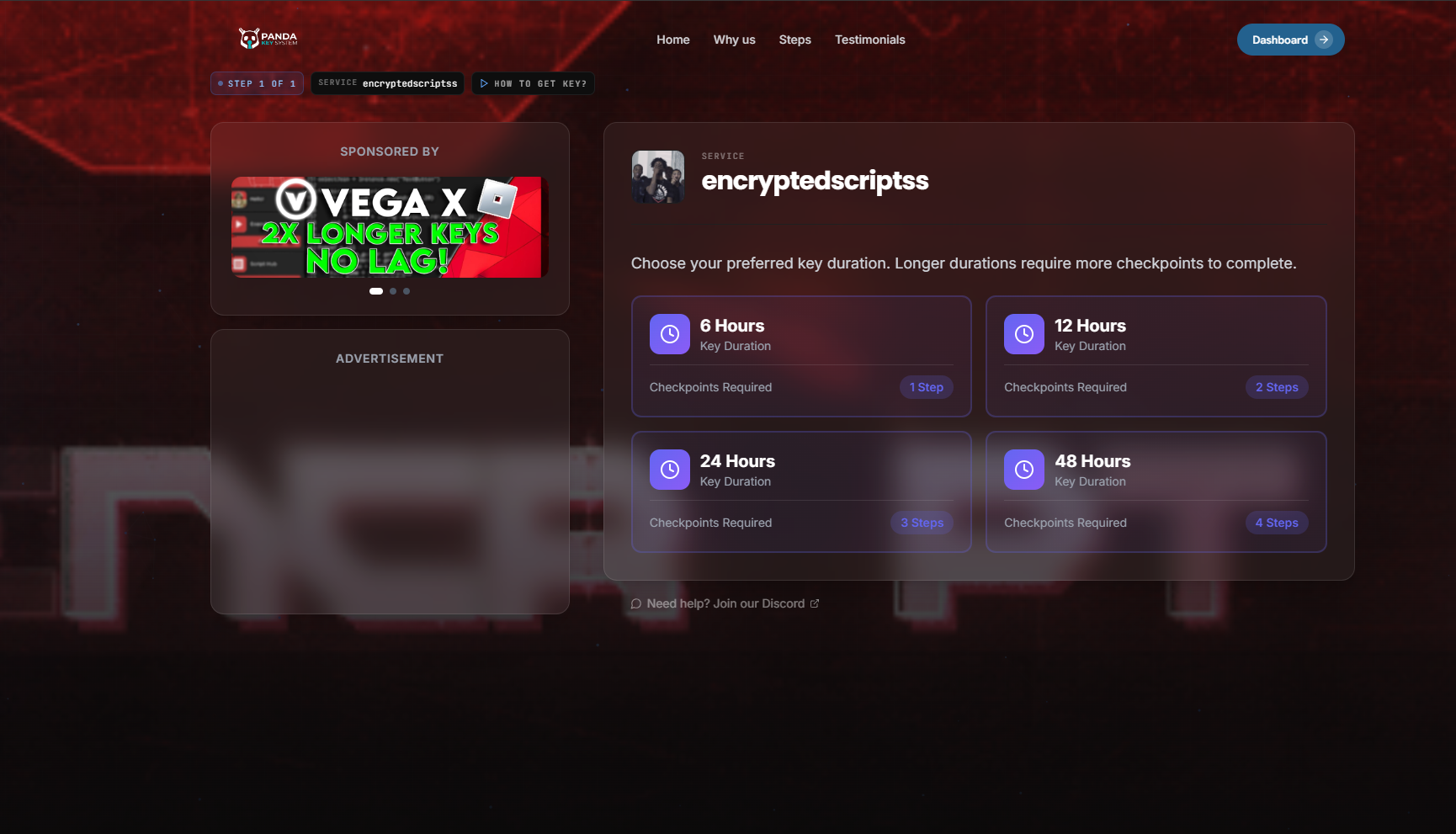
A configured Appearance setup produces a get-key page like this:
Test on mobile too