For Developers · Dashboard
Account Limits
The Account Limits page is your view into every account and device currently using your service's keys. From here you can see exactly who has redeemed what, on which device, and how recently they used it — plus delete specific accounts or devices to revoke their access. It's a focused Roblox-side tool that pairs with the multi-account and multi-HWID toggles in Authentication.
Roblox-only feature
Prerequisite: enable Multi-HWID or Multi-Account
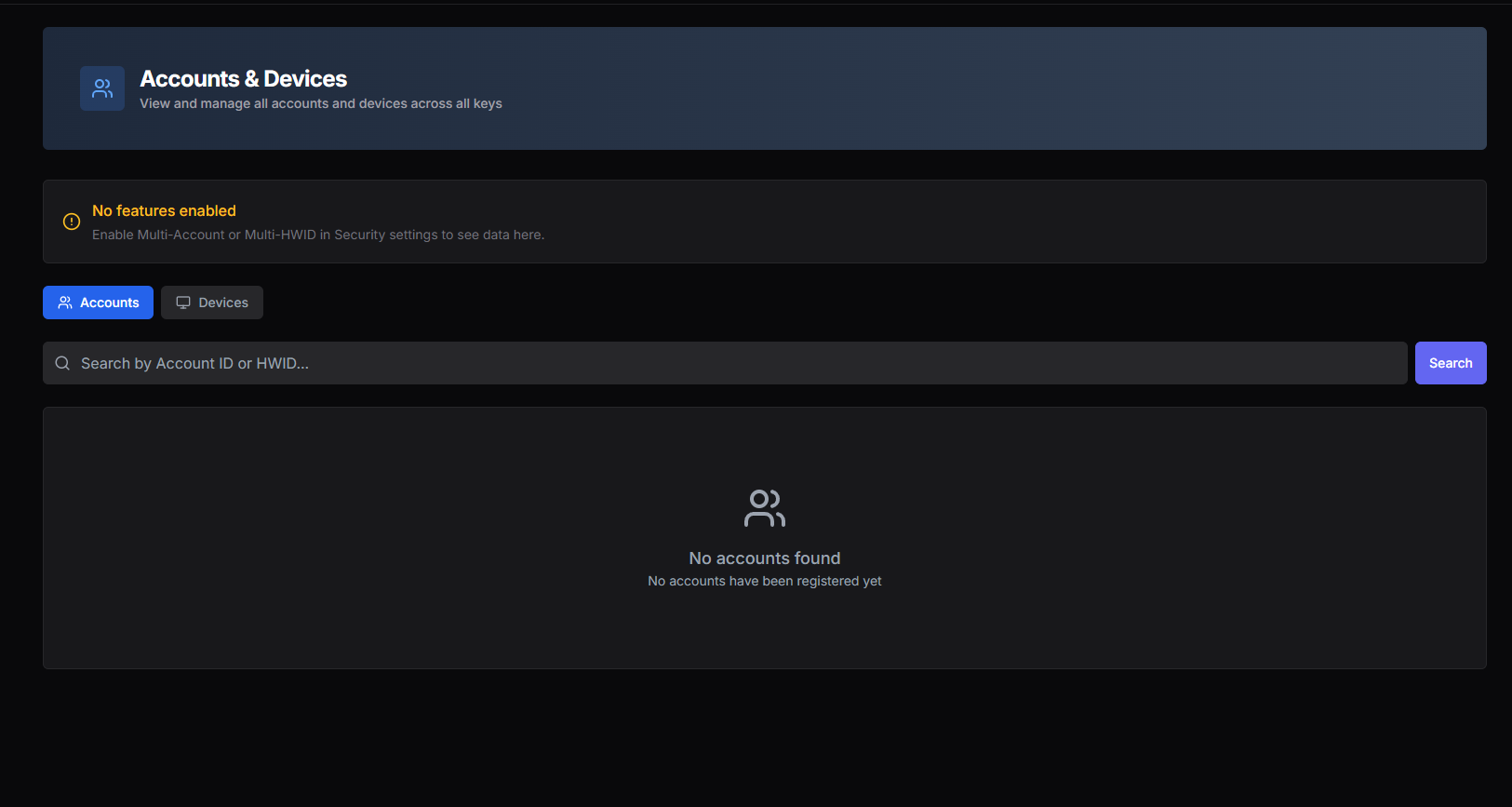
Accounts management
The accounts side shows every Roblox account that has redeemed a key on your service. Each row includes:
- Roblox User ID — the specific Roblox account using the key.
- HWID — the device fingerprint that account is bound to.
- Key — the key value the account is paired with.
- Type — Generated (key created but not yet validated) or Active (validated, in use).
- Last Used — the most recent timestamp the account validated successfully.
You can delete any account from the list. Deleting unlinks that account from the key — it can no longer use the key, even if the device or other accounts on the same device still can.
Devices management
The devices side shows every HWID that has redeemed a key on your service. Each row includes:
- HWID — the device's unique fingerprint.
- Key — the key value the device is paired with.
- Type — Generated or Active.
- Created — when the device first redeemed the key.
- Last Used — the most recent validation timestamp.
Deleting a device disconnects it from the key. The device will fail validation on its next attempt and the user will need to either redeem a new key on it or have you re-authorize the device.
When to delete an account or device
- Account/device is suspected of abuse — a Roblox account or device caught attempting to bypass your protections.
- User asked to free up a slot — a paying customer wants to redeem the key on a different device and you've already hit their device limit.
- Stale entries — devices that haven't validated in months and are taking up slots for users who actually use the service.
Deletion is immediate
This is a Roblox-side tool, not a license management dashboard